Using Git Worktrees for Parallel Branch Development


Git Worktrees for Parallel Branch Development
If you've ever maintained separate checkouts of the same repository to work on multiple features or bug fixes at once, git worktrees are the upgrade to your development workflow.
The Old Way: Multiple Clones
The naive approach to parallel branch work is cloning the same repo multiple times into different directories. It works, but it doesn't scale well. As a project grows in size and complexity, keeping all those clones in sync with upstream becomes a real chore — every merged PR means pulling changes into each checkout manually. It's easy for one of them to quietly fall behind, leading to confusion later.
What Worktrees Do Differently
A git worktree lets you check out multiple branches from a single repository simultaneously, each in its own directory. The key distinction: all worktrees share the same underlying git object store. When a branch gets fetched, every worktree sees it immediately — no re-fetching required.
The Main Benefits
- Shared git history: One fetch, available everywhere. No syncing multiple clones.
- True branch isolation: Each worktree has its own working directory and index. You can have a feature branch, a hotfix, and main all checked out at the same time without any interference.
- Faster context switching: No stashing, no
git checkout, orgit commit -am 'wip'. Switch tasks by changing directories. - Great for AI coding agents: This is increasingly relevant as tools like Claude, Cursor, and Copilot Workspace operate on your codebase autonomously. Giving each agent its own worktree means they can work in parallel without stepping on each other — or on you.
One Caveat: Dependencies
Each worktree has its own copy of your dependency directory (node_modules,
_build, .deps, etc.). That sounds expensive, but in practice it's a minor
inconvenience. Most package managers cache downloads locally, so a fresh
npm install or mix deps.get in a new worktree resolves quickly.
Example Workflow
Create a new worktree for a feature branch based on origin/main:
git worktree add -b PROJ-2152 ../project-feature origin/main
cd ../project-feature
This creates a new directory at ../project-feature with PROJ-2152 checked out
and ready to go — no extra fetch needed if origin/main was already up to date.
Cleaning Up
Once your changes are merged upstream, remove the worktree to keep your filesystem tidy:
git worktree list
git worktree remove ../project-feature

# If there are uncommitted changes you want to discard:
git worktree remove --force ../project-feature

# Optional: delete the local branch after merge
git branch -d PROJ-2152
Getting into the habit of removing worktrees after merging prevents a cluttered working directory and the confusion that comes with it.
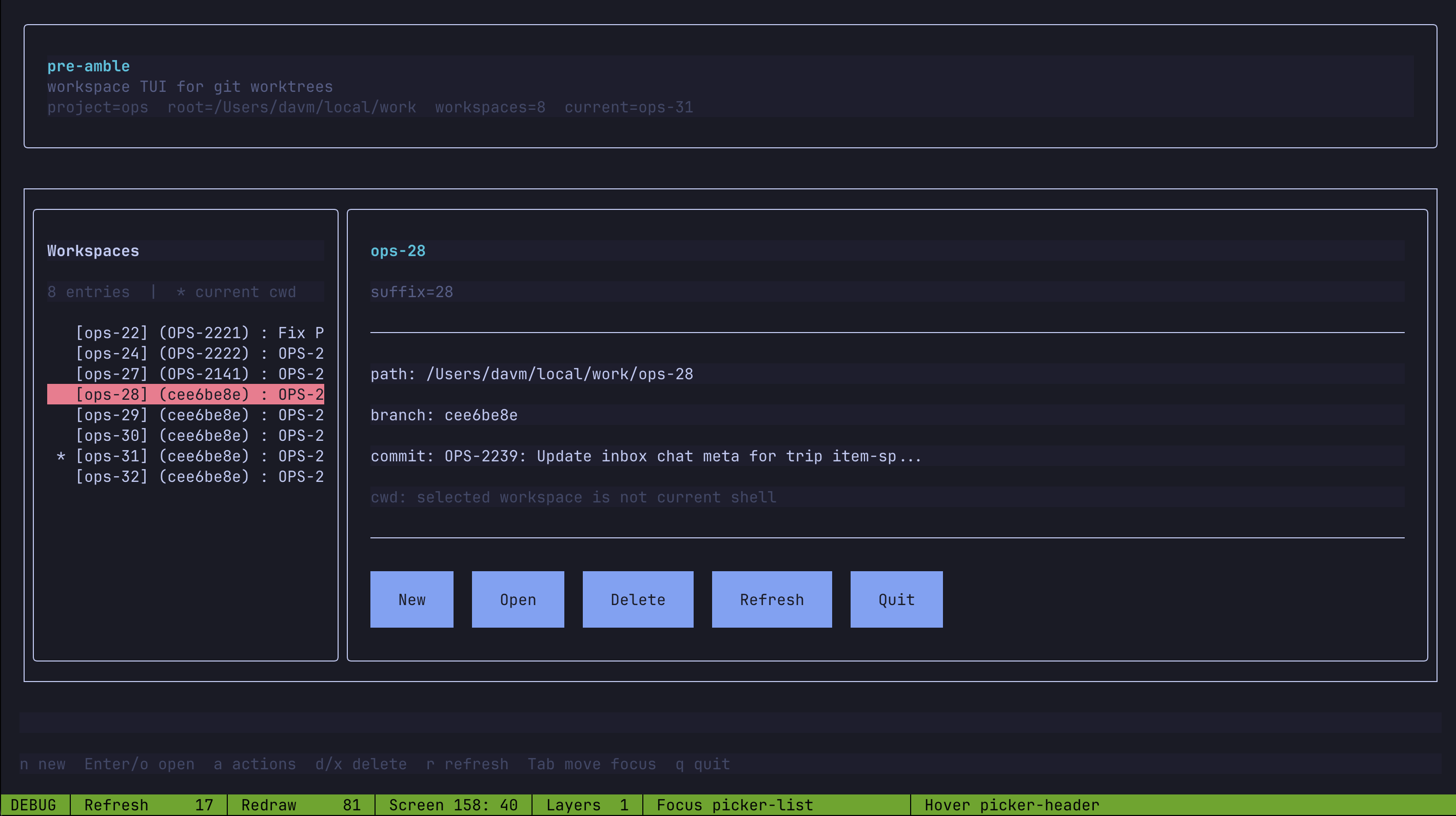
Preamble TUI: A Worktree Browser
Worktrees hit a sweet spot: low setup cost, meaningful reduction in context-switching, and a natural fit for AI-assisted development, which increasingly demands parallel workstreams.
One thing that fell out of this workflow for me was pre-amble, a small terminal UI for worktree management. Pre-amble makes it easier to navigate and set up new worktrees.
It shows the branch and most recent commit, and lets me create, open, refresh, or remove worktrees without git commands. Source: github.com/dviramontes/preamble.